Your feed can wait.
Block the apps. Leave the key somewhere else. Free, for iPhone and Apple Watch.

Coming soon to the App Store.
- Free
- No ads
- No data collection
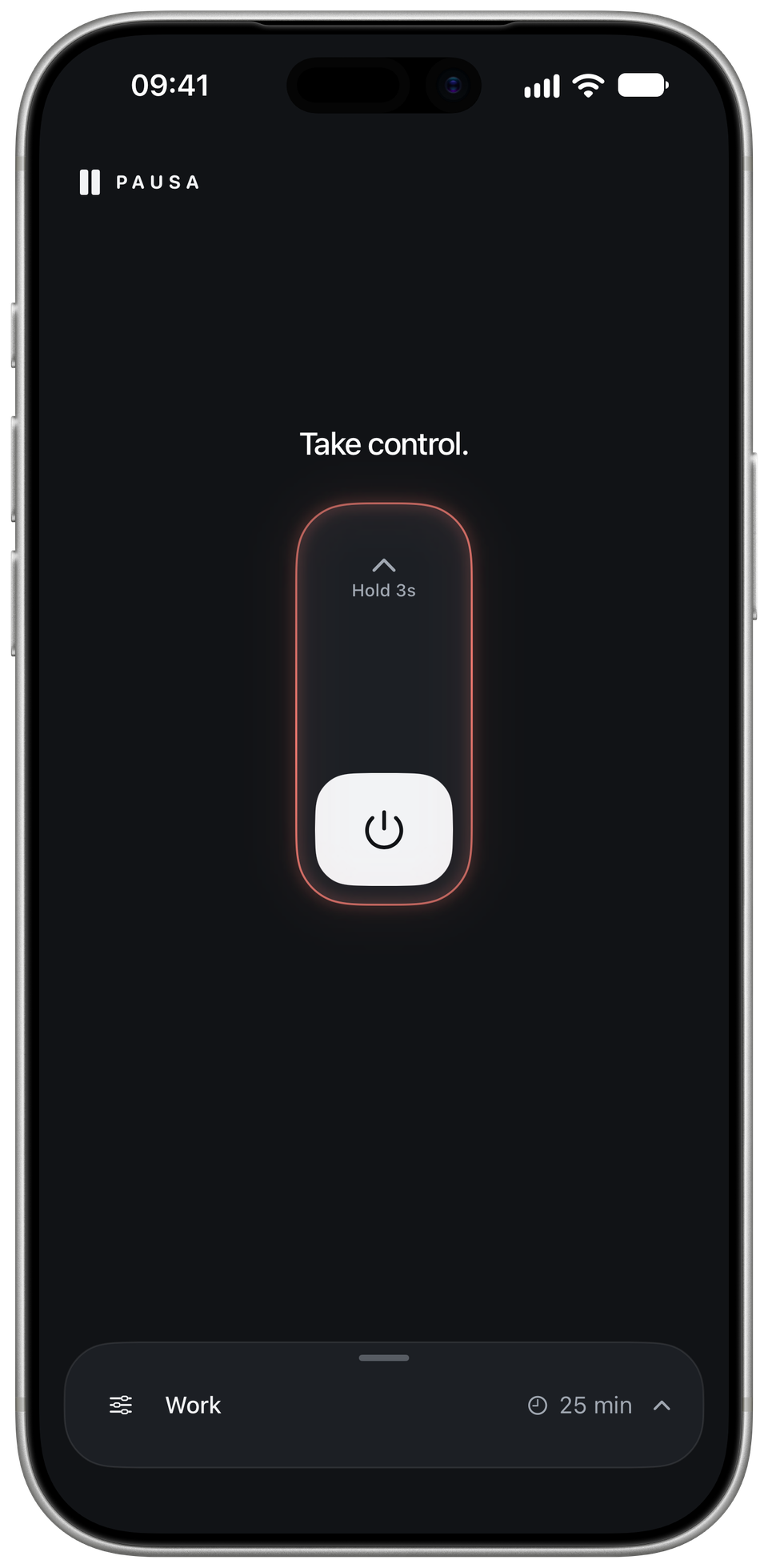
Take control.
Slide up, then hold.
Interactive demo.
“Just use your phone less.”
Whole teams work on keeping you in your feed. And getting you back as soon as you leave. Designers, analysts, tests. It’s a full-time job. And you’re told to just put your phone down. Cool, thanks. PAUSA adds a small pause before another “just checking”.
Put your apps on pause.
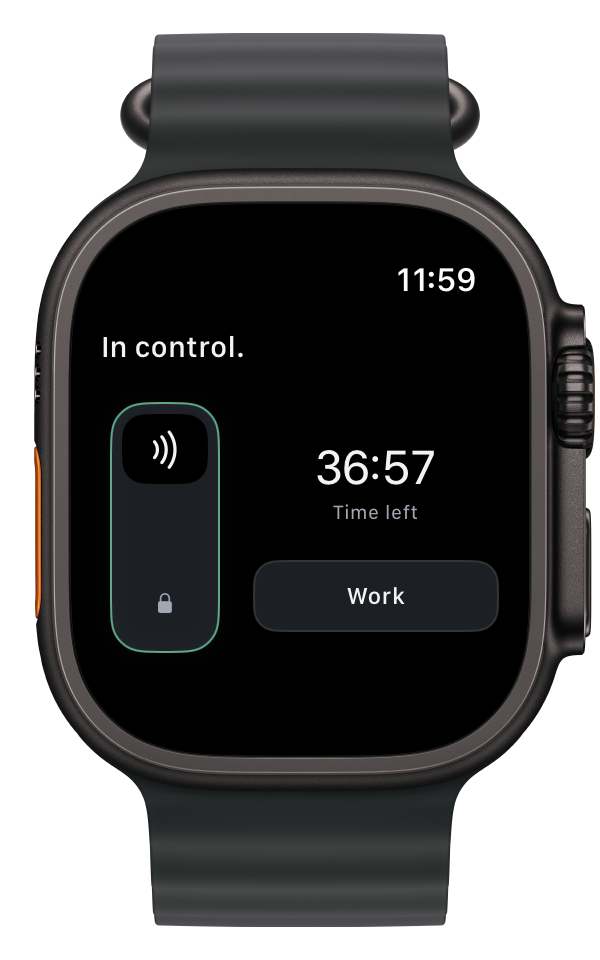
iPhone + Apple Watch
- 1
Choose your apps.
Allow Screen Time access and pick the apps and websites you want to block.
- 2
Link a key.
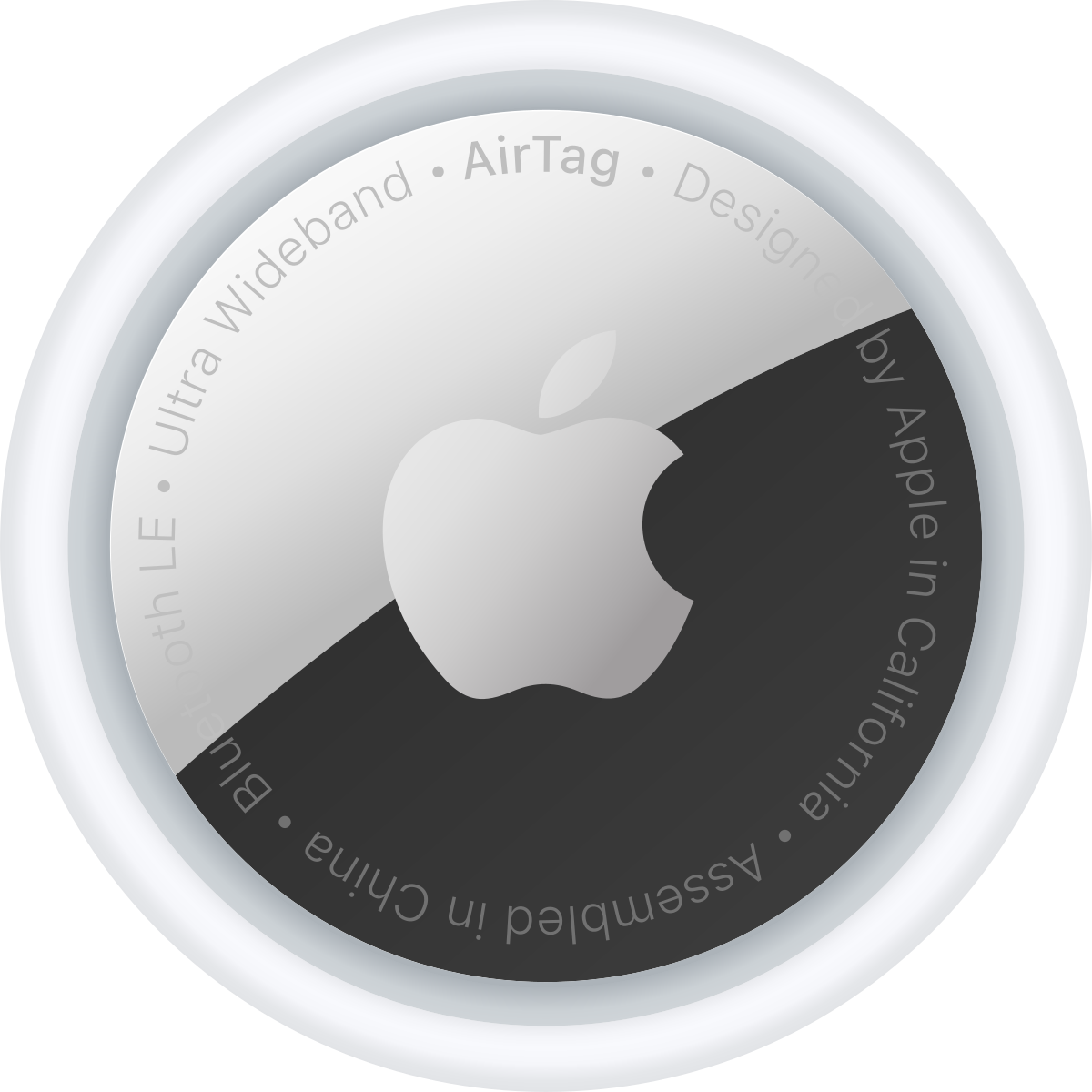
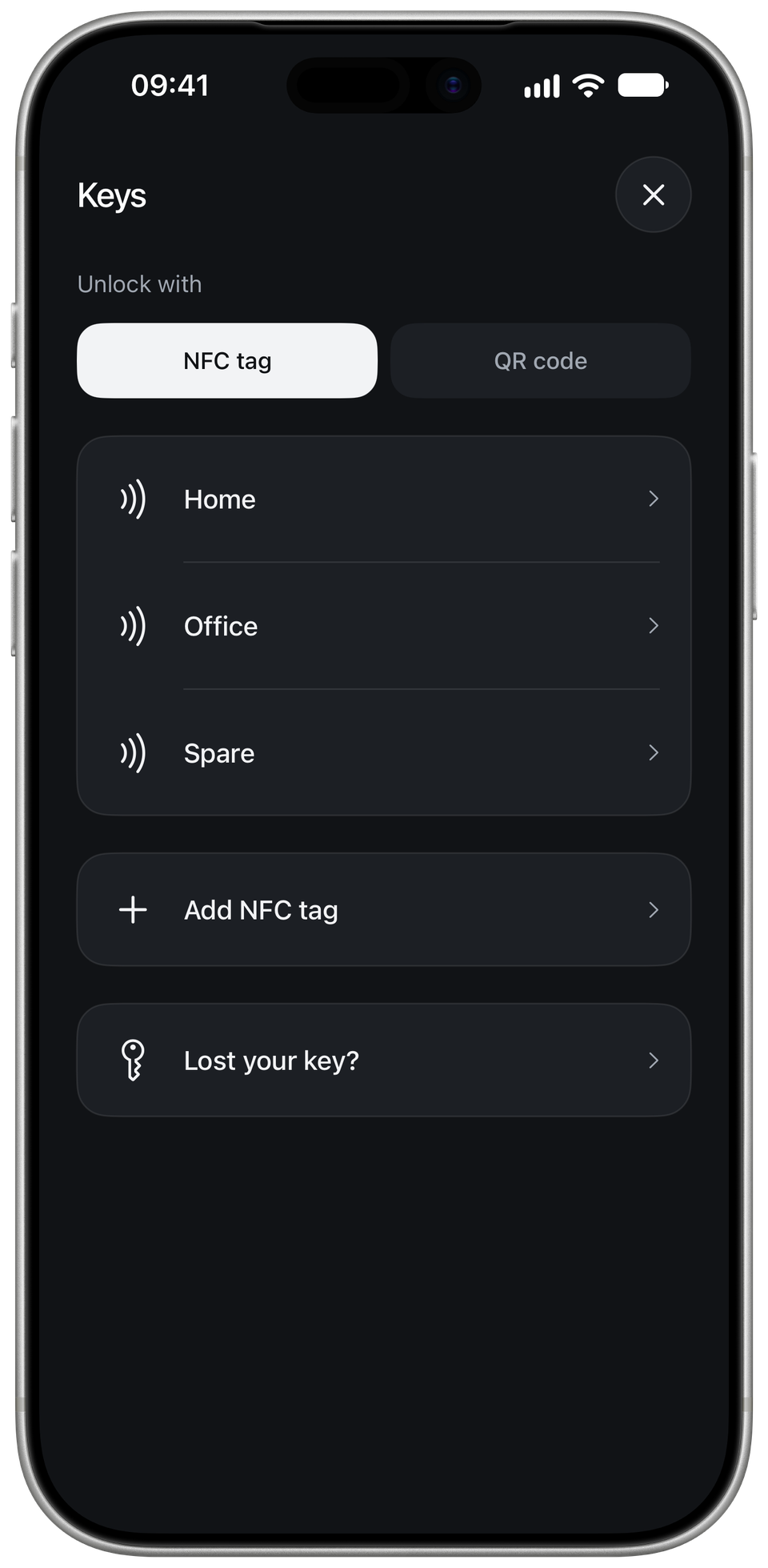
Scan your AirTag or a compatible NFC tag. Or create a QR key and give it to someone you trust.
- 3
Set a time. Take control.
Slide up and hold for 3 seconds. Your session ends automatically. Scan your linked key for a break or an early finish.
Scan before you scroll.
Your AirTag, a compatible NFC tag or a QR key. Scan inside PAUSA when you want a break. One small step before opening the feed again. No special PAUSA device to buy.
Different day. Different apps.
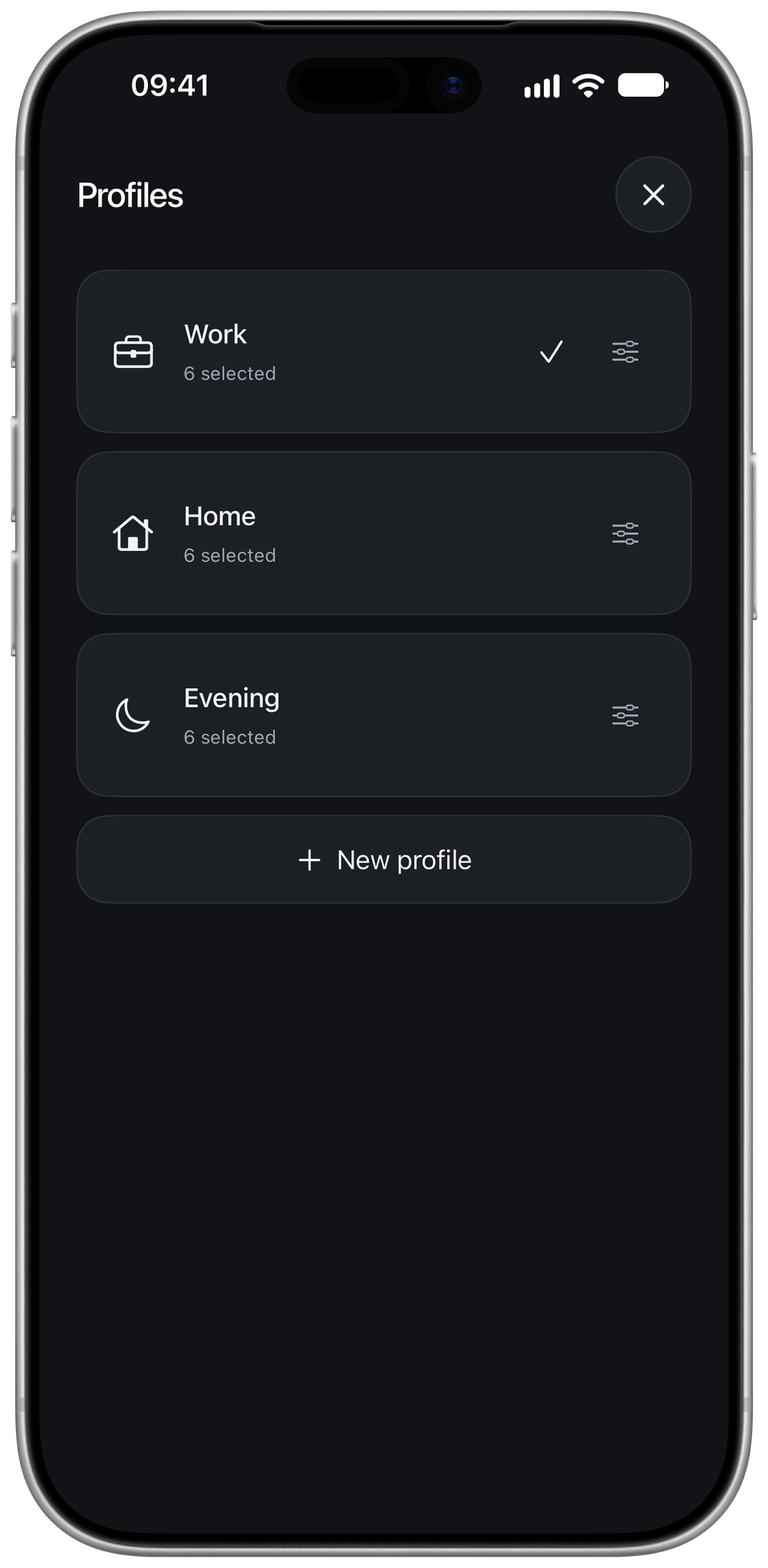
Keep separate app selections for work, home or evenings. Schedule sessions by day and time. You choose what goes in each profile.
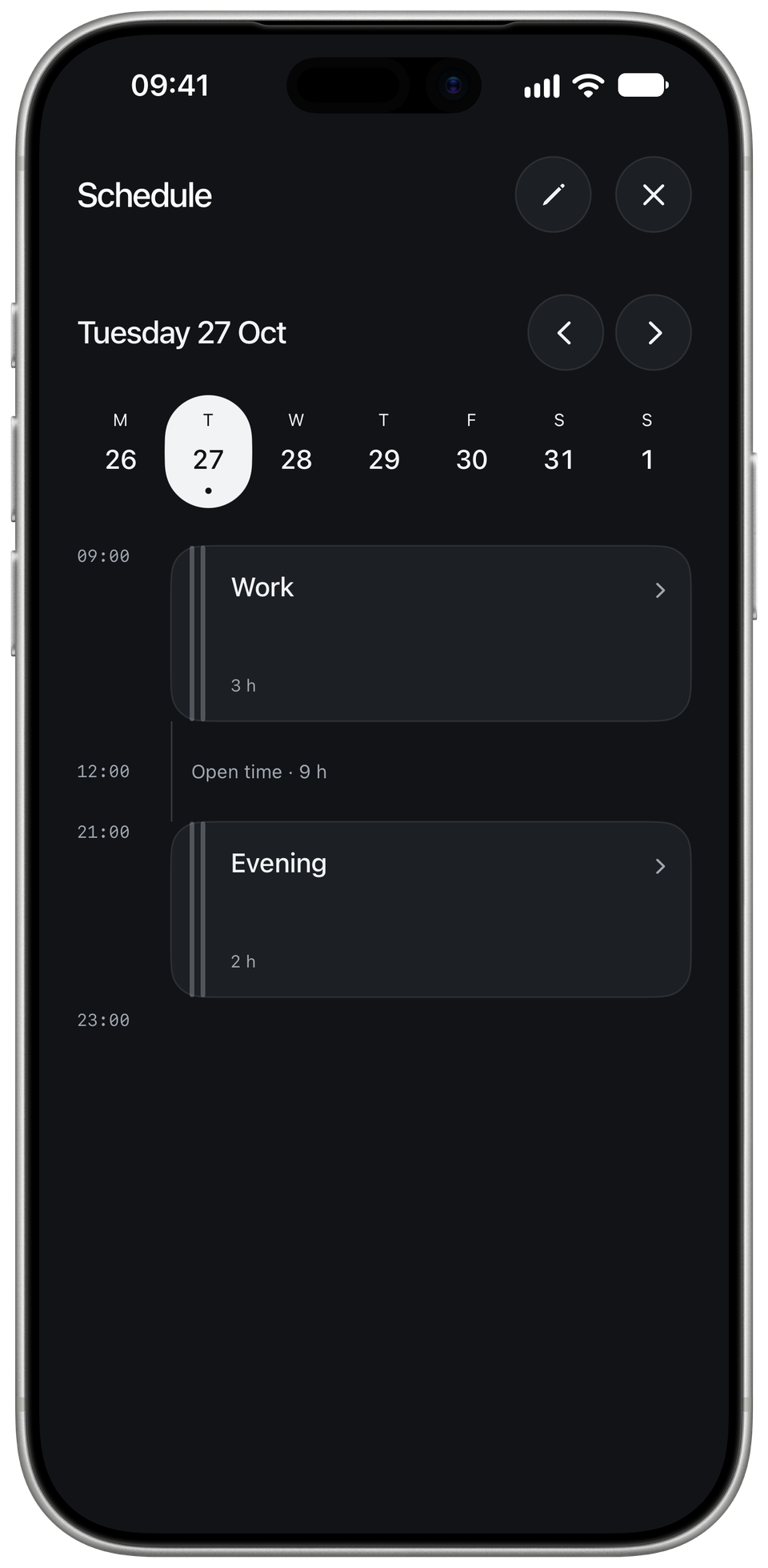
Choose your days.
Pick the days and times. PAUSA starts the right profile when it is time.
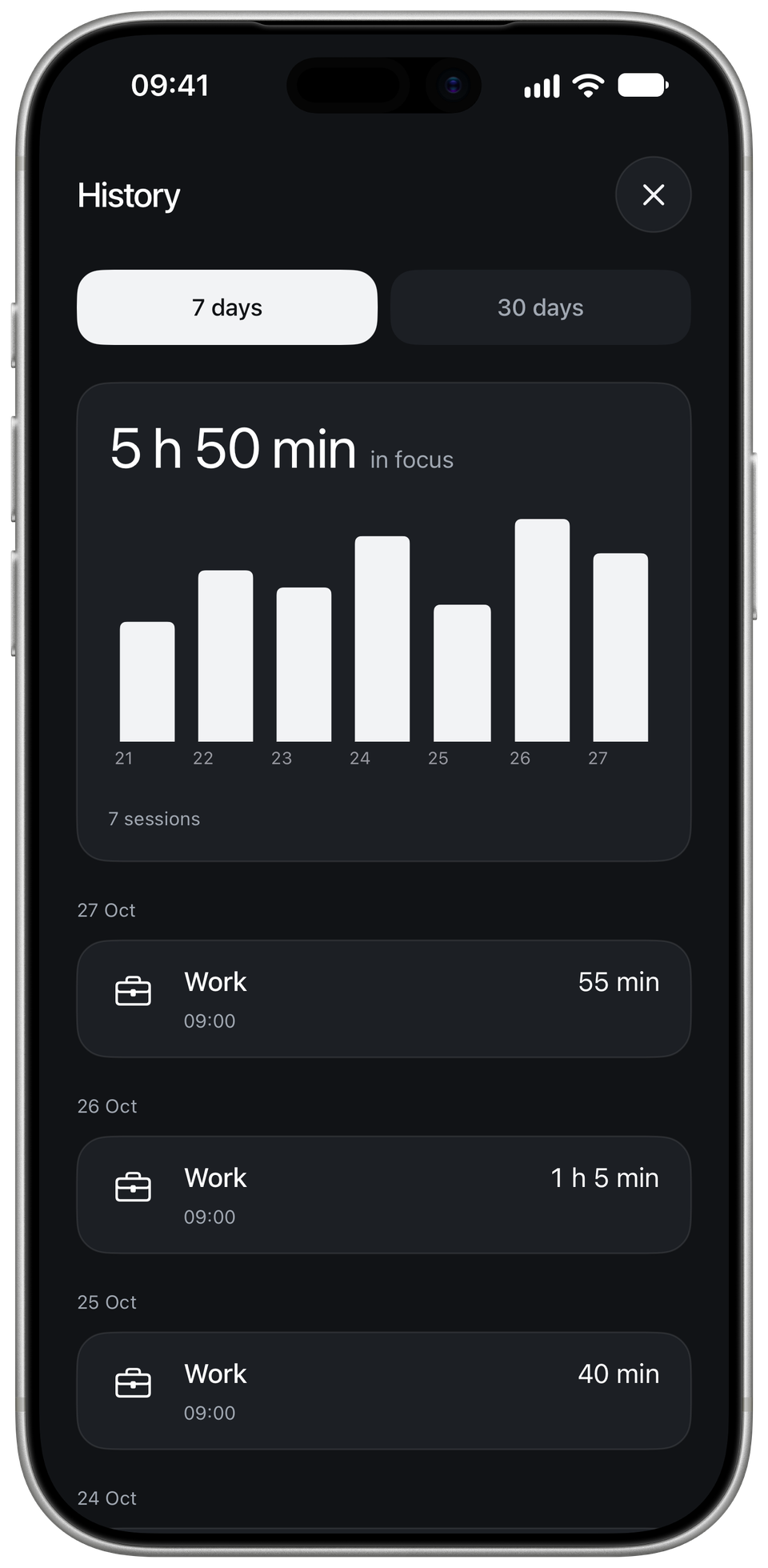
Your focus, in numbers.
Look back at your sessions and the time you spent in focus.
Free. No ads. No subscription.
All features included. We don’t collect your data.
PrivacyA few useful answers.
Which NFC tags work? Does AirTag work?
PAUSA supports compatible NTAG213/215/216 and ISO 15693 tags. An AirTag has also been tested successfully in PAUSA. NFC reading requires a compatible iPhone; support does not extend to every NFC device or card. You can use a QR key instead.
How do I link a tag? Will PAUSA overwrite it?
Open Keys, choose NFC tag and add a tag. Scan it in the system scanning window. PAUSA links its identifier; it does not write to the tag or replace its saved content.
Why does touching my tag open a website?
That is the link already stored on the tag, opened by iOS. A background tap is not PAUSA’s unlock scan. Open PAUSA, choose a break or an early finish, then scan while its NFC scanning window is visible.
How do I create and give someone a QR key?
In Keys, choose QR code and create a QR key. Use “Share & hide” to send the card to someone you trust. After a successful handoff, PAUSA hides the code and you cannot reopen that card in the app. The recipient does not need PAUSA: they can keep the image, show it on their screen or print it. You scan it from inside PAUSA.
What happens to my data?
No. Your profiles, history and keys are stored locally. Your iPhone shares session information with your paired Apple Watch. Screen Time and optional payments use Apple’s services. None of this is sent to us.
Why is it free?
PAUSA is a small non-commercial project. All features are free, with no ads or subscription. There is completely optional support inside the app if you want to say thanks. It does not unlock anything; the features are already yours.
Touch grass.
Pet an actual cat.
The cats in your feed can wait.